Switch from the Sigilium add-in to the new Signitic add-in in just a few simple steps.
You need administrator privileges for a Microsoft 365 account to complete this step.
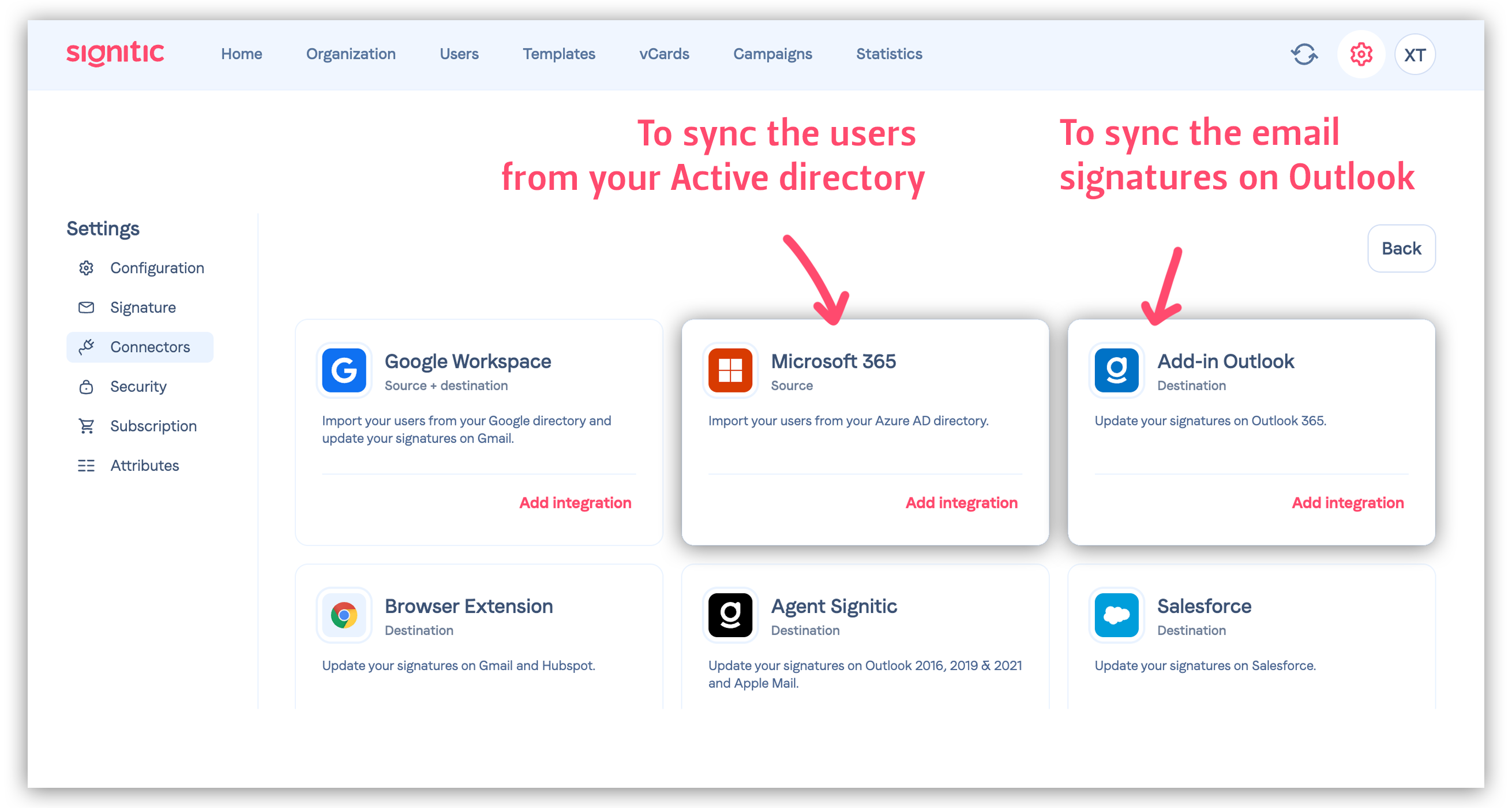
This connector lets you link your users in the Microsoft 365 directory to Signitic.
You can also configure newly created users to be synchronized automatically.
https://support.signitic.com/en/articles/8224279-connect-microsoft-365

Also, be careful not to enable data rewriting unless you are sure of the data quality in your Entra ID.
In your Signitic interface, go to Settings > Connectors.
Direct link: https://app.signitic.com/settings/connectors/available
You can find all the required documentation here: https://support.signitic.com/fr/articles/8224361-deployer-l-add-in-outlook
Enable the Outlook add-in.
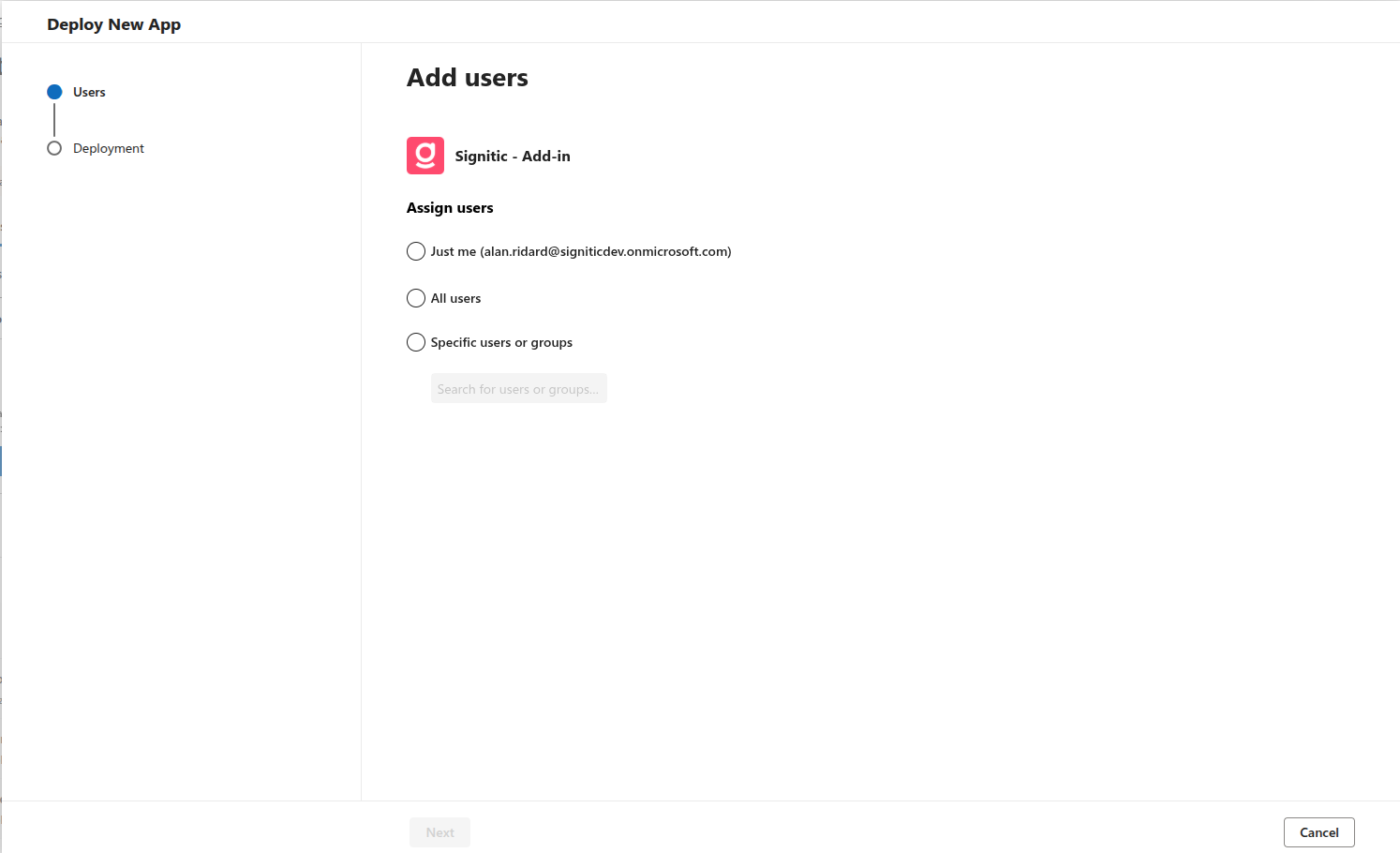
Select the user scope and confirm your selection.
Deployment is automatic.

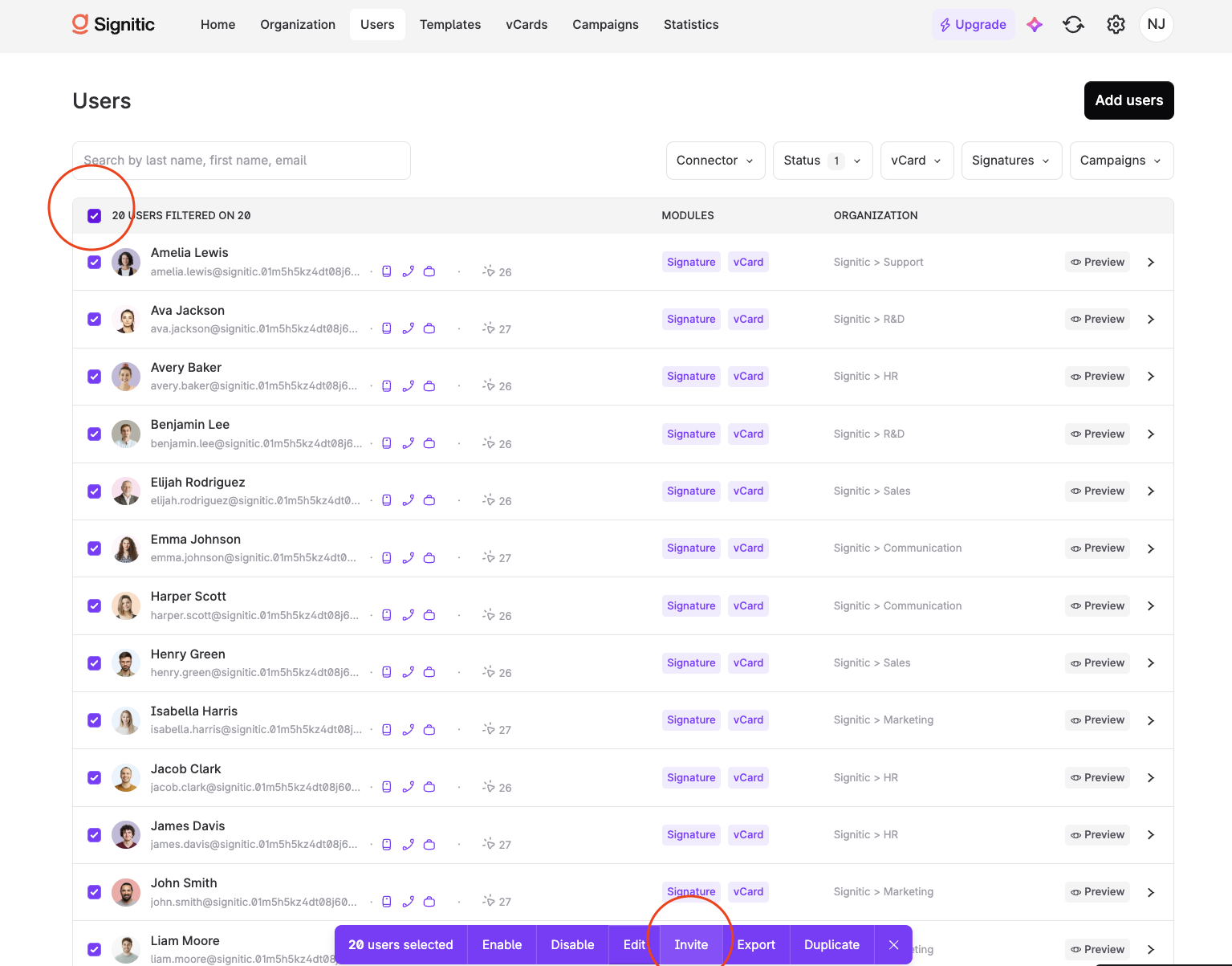
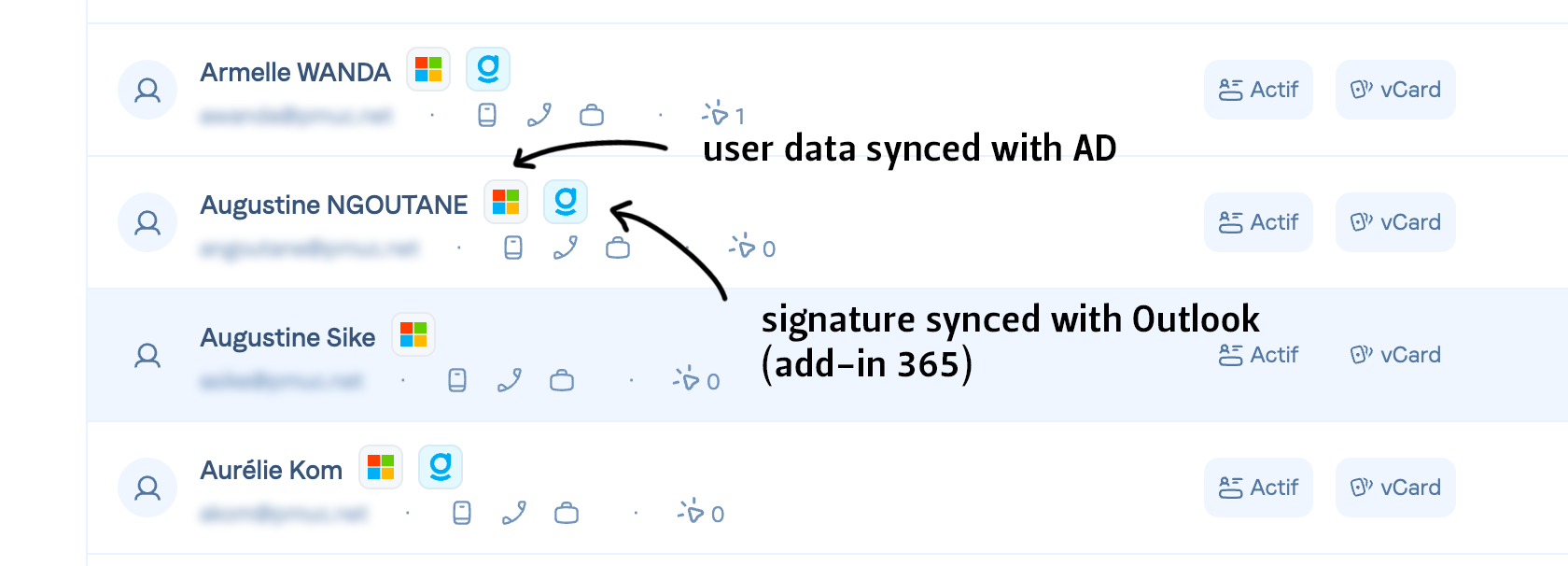
Once the Signitic add-in has been deployed, blue icons will appear in the user list. Example below:
The procedure is explained in our dedicated article here:
ADD LINK
It's not mandatory: the only thing that will change for users is the add-in icon in Outlook. It changes from green to pink.
However, we have prepared materials.
These are available to you:
You can share this presentation with users internally.
You can send users a message centrally.
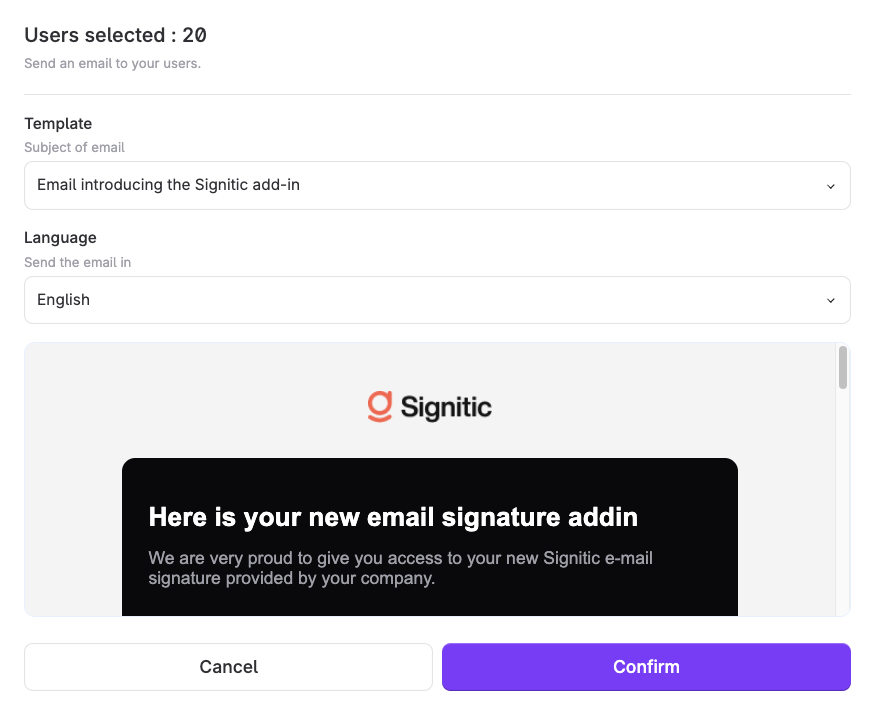
On the Users page, select the entire list, click Invite in the bottom bar, and select the message and language.