We recommend reactivating the synchronization of email signatures via the Signitic connector for Google Workspace.
In the menu bar, go to Settings (gear) > Connectors.
Direct link:
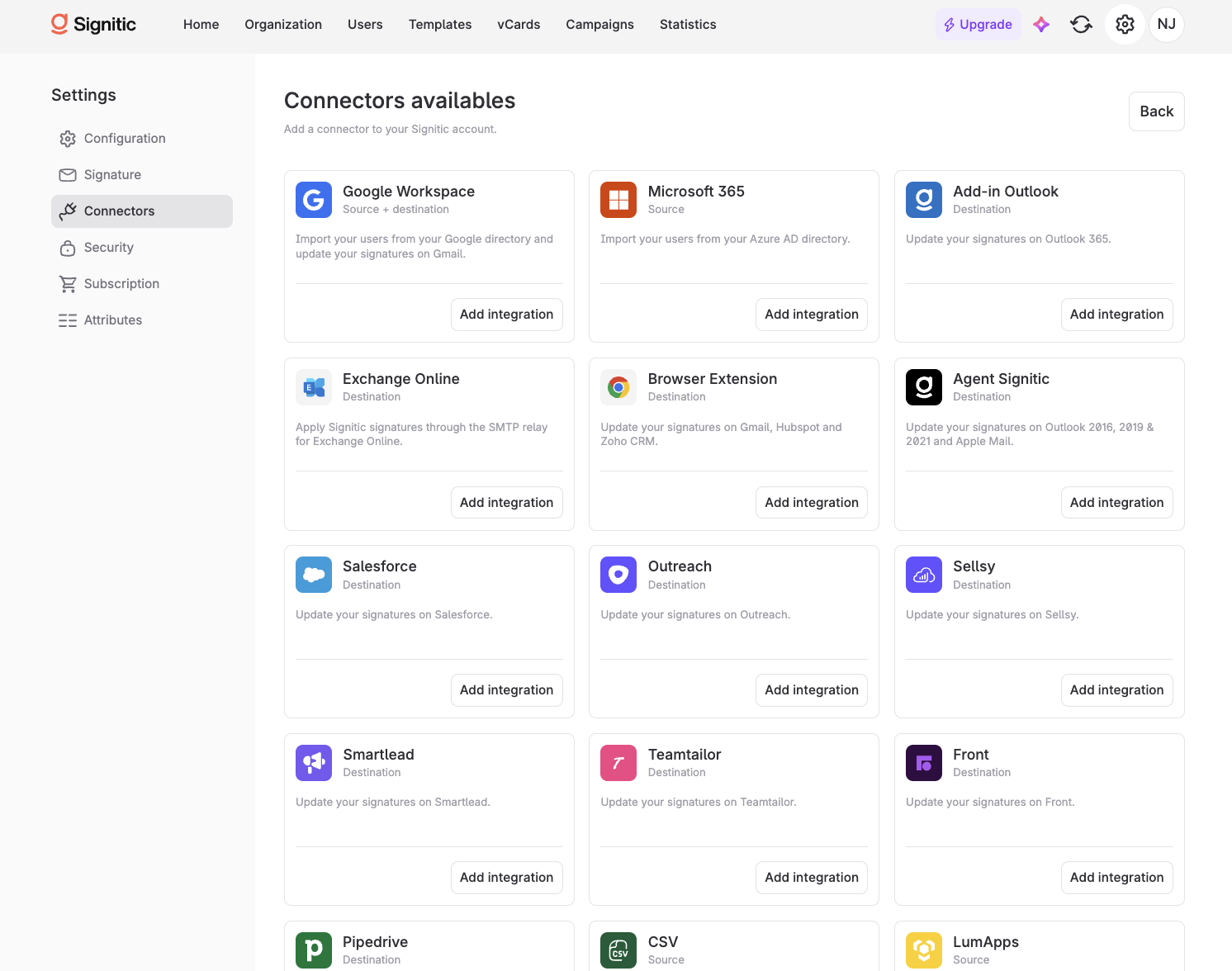
Activate the Google Workspace connector.
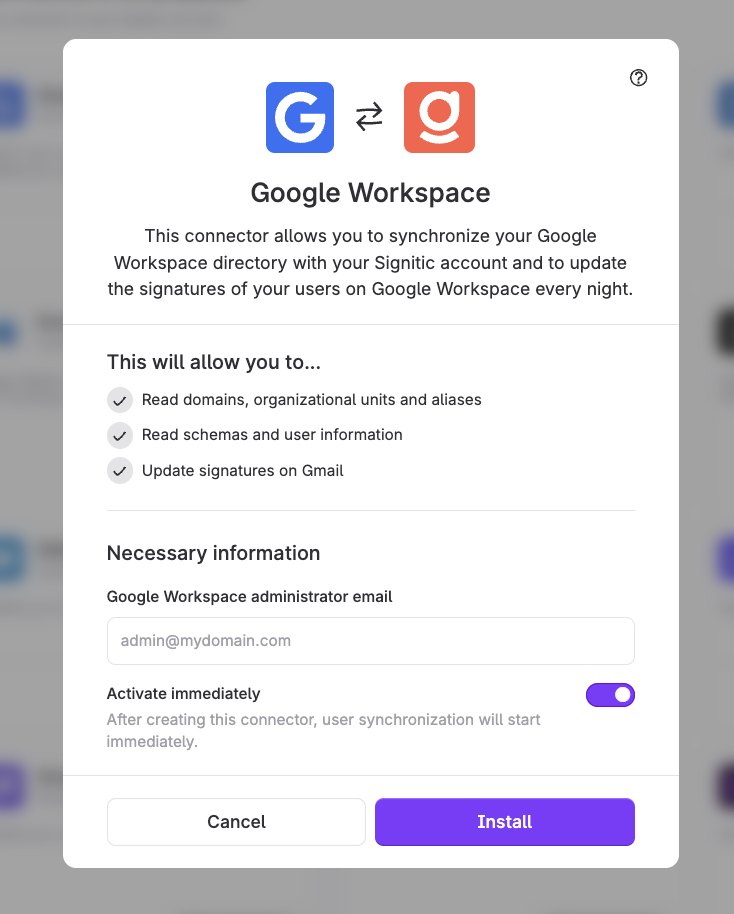

Select the users to be synchronized.
By default, user synchronization (for users listed in the Workspace account) and Gmail signatures are disabled.
To enable signature synchronization in Gmail with the Signitic connector, select the … option in the “Synchronization options” section.

To edit their signature, they only need to click once. This short article, which you can share with them, explains how it works: Manage my signature in Gmail
ADD LINK
To use multiple signature synchronization in Gmail and allow your users to choose from several prepared signatures or use different signatures for internal and external emails, enable the Signitic Chrome extension for Gmail.
Here is the Signitic article about this connector: