Once Signitic is set up, you can remove the Coral connectors (formerly Mailtastic).
From this page you can remove the Coral (ex. Mailtastic) Add-in (your collaborators will no longer see the Coral (ex. Mailtastic) icon in Outlook):

Since the Signitic add-in now synchronizes email signatures, you need to disable the old Coral add-in (formerly Mailtastic) in your Microsoft 365 tenant.
As the administrator of the 365 account, remove the Coral application (formerly Mailtastic) from this page:
https://admin.cloud.microsoft/#/Settings/IntegratedApps/:/Redirect/Store/WA200006845/fr-FR
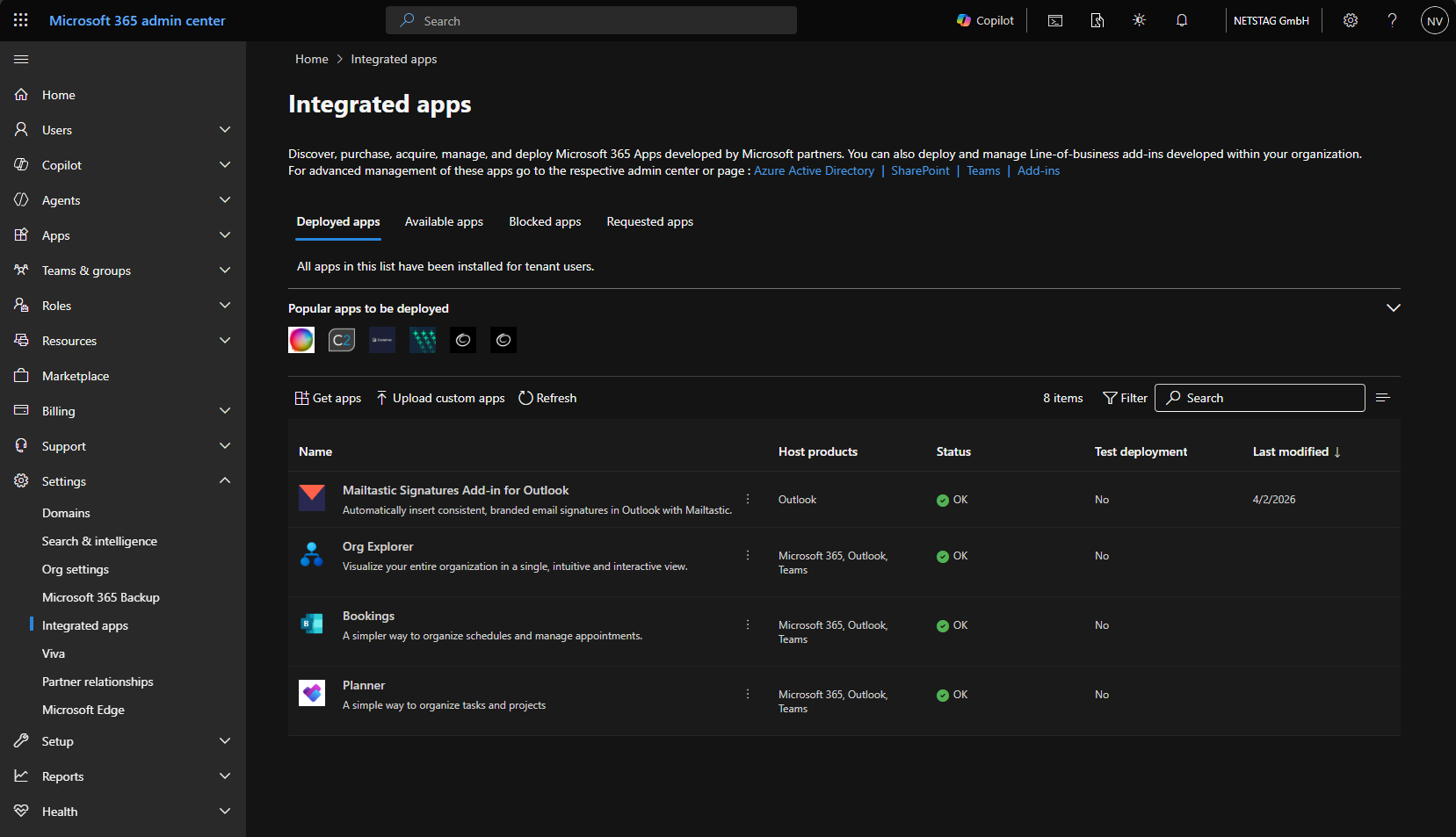
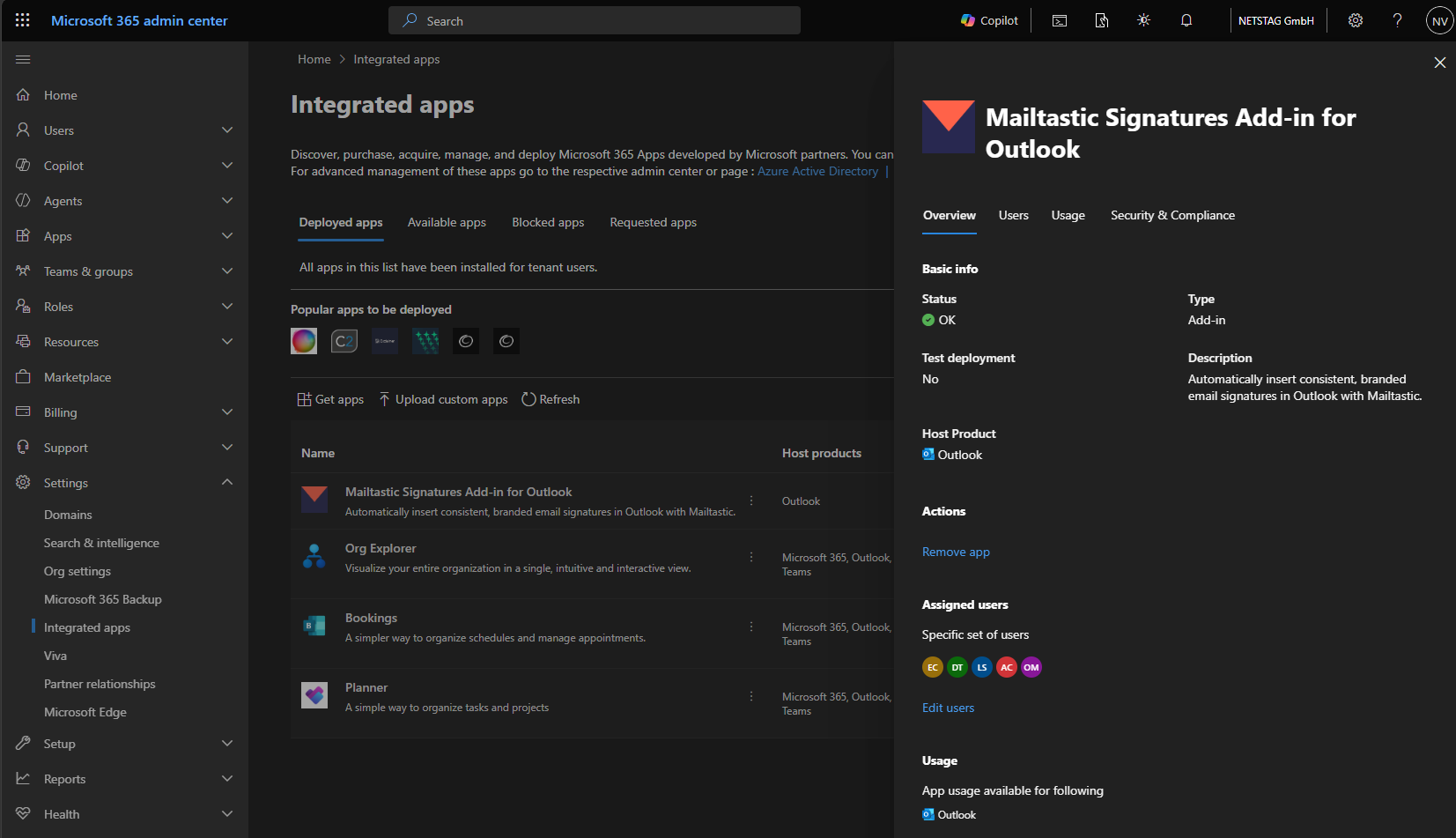
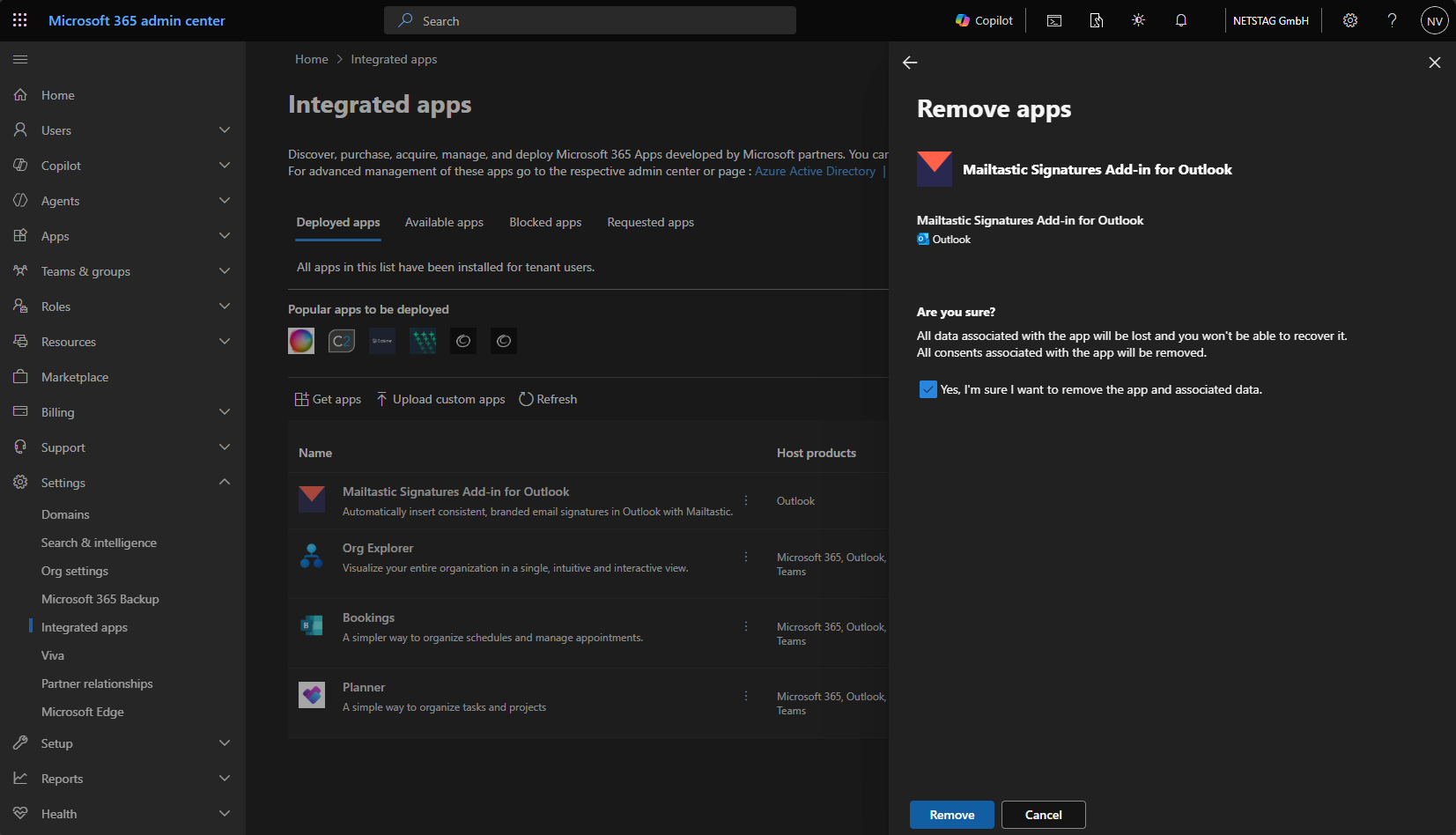
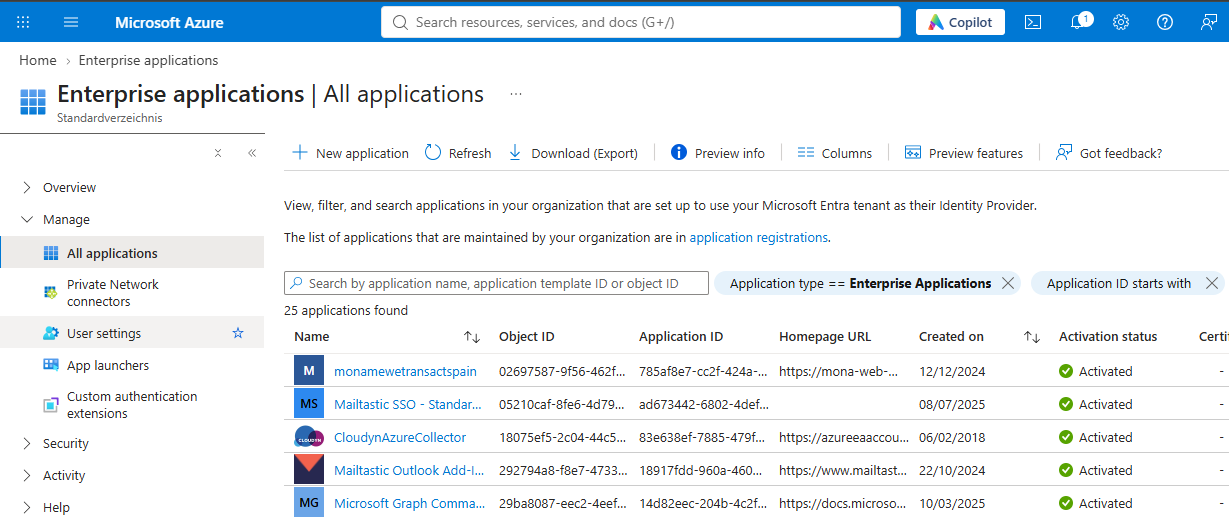
If you have also synchronized your directory information, you can remove the permissions on this page:
https://portal.azure.com/#view/Microsoft_AAD_IAM/StartboardApplicationsMenuBlade/~/AppAppsPreview
You can delete all applications whose name contains “Coral” or “Mailtastic”.
✅ Congratulations, everything is done. You are now using the latest version of the add-in! Your colleagues' email signatures are synchronized, and the process went smoothly for them.