NEW - Updated Google Chrome Extension is live
Find out more below.
For Admins:
If you use Gmail in combination with G Suite, you do not need to integrate your signatures manually into Gmail, but can use our Chrome plugin EasySync 4G.
Link: Open Signitc Coral EasySync4G in chrome web store
The plugin can be easily installed and put into operation by the end user themselves as described in the corresponding instructions.
As an admin, you only need to make sure that end users are allowed to install Chrome plugins.
In addition, you as an admin have the option to roll out the plugin centrally for all end users. You can find all info about how to automatically install apps and extensions here and this article which also explains how to force install Chrome Extension in your company.
Further information about the plugin can be found here.
For end users:
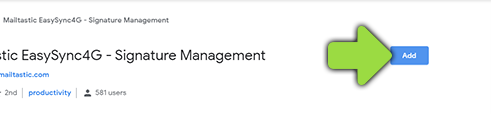
Please make sure that you use the newest version of Chrome. Open the Chrome Web Store and add the "Signitic Coral EasySync4G Chrome Extension" by clicking "Add" and "Add Extension".
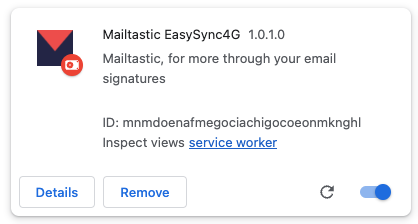
Switch to Gmail and reload the browser window (F5). Your chrome bar will now show the small Signitic Coral icon.
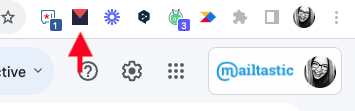
Open EasySync by clicking on the icon and log in with your business Google access data. These are usually the same access data you use for your Gmail.
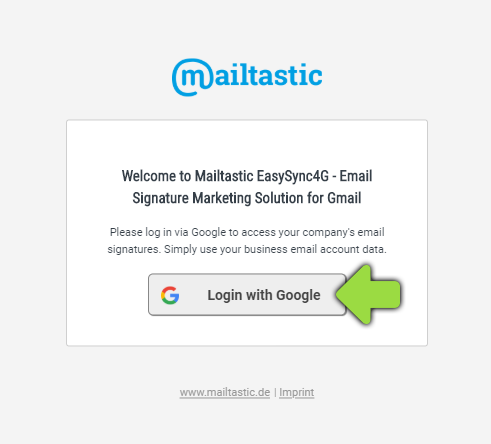
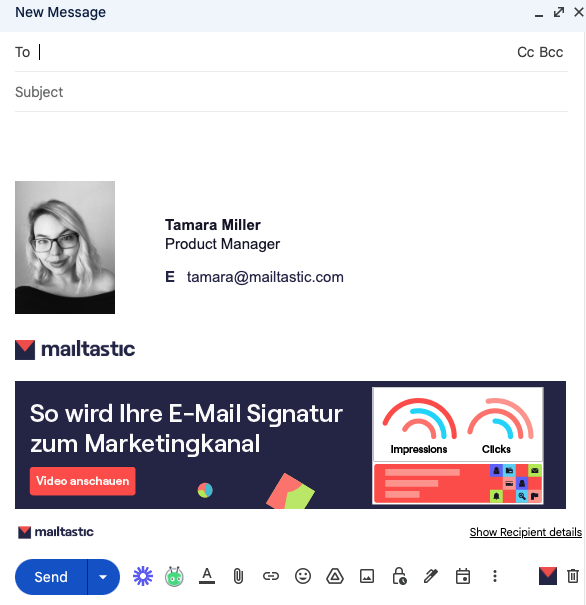
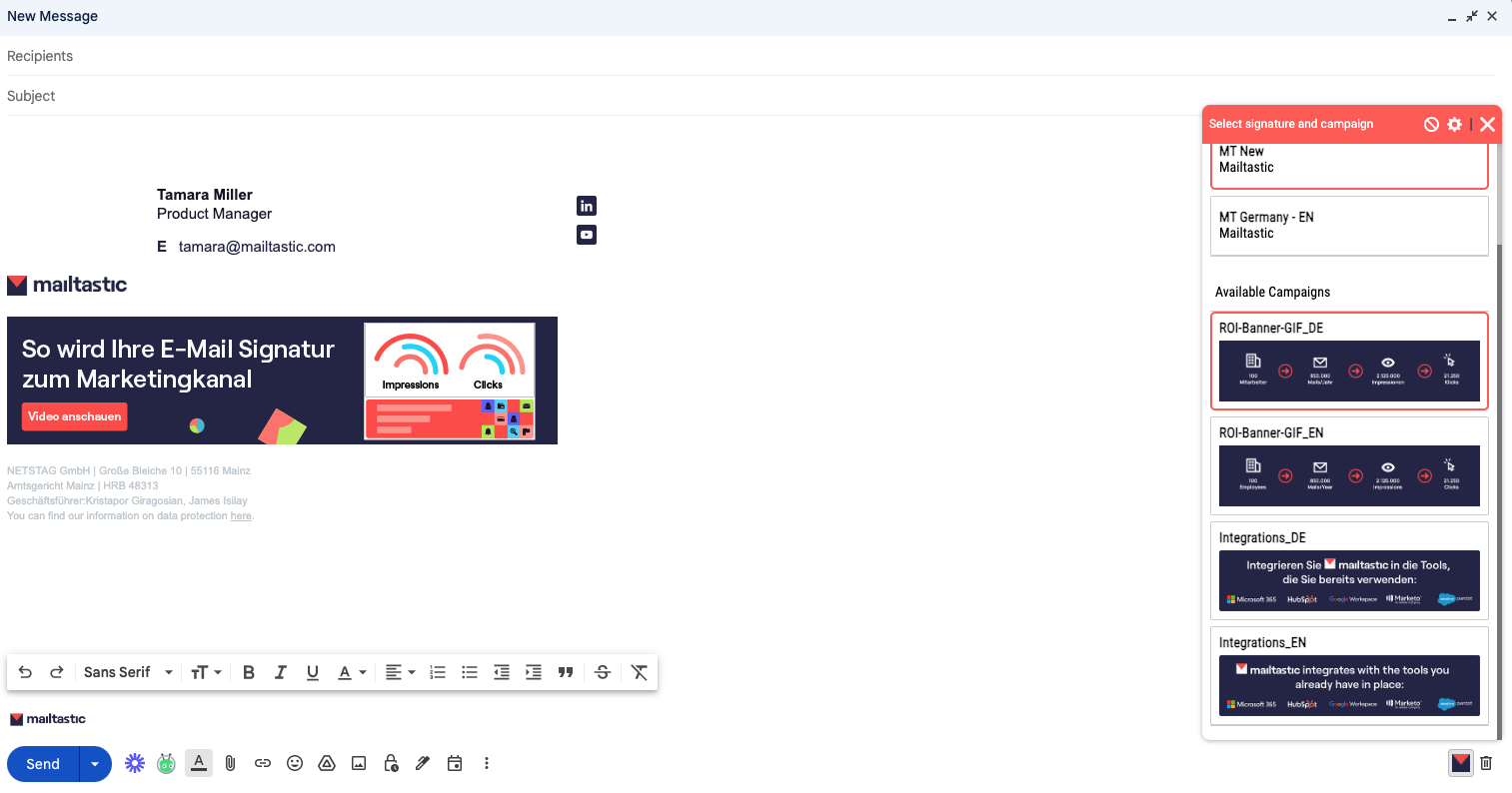
That's it! After you have logged in to EasySync, you will be provided with the email signatures that your Signitic Coral admin has assigned to you. You can select the signatures by clicking on the small blue Signitic Coral icon in the "Compose New Message" window:
If you have been provided with several signatures, you can choose between the signatures here.
Usually your Signitic Coral admin should already have set up a default signature for "New messages" and "Reply/ Forward".
If in any doubt, please contact your Signitic Coral admin.
NEW: If you have an integration with Marketo, we’ve got excellent news for you! We just added a Marketing Consent feature to our Google Chrome extension which indicates if your recipients of a target group have given marketing consent on your website. Check out this Marketo article in our Help Center which explains all the features.
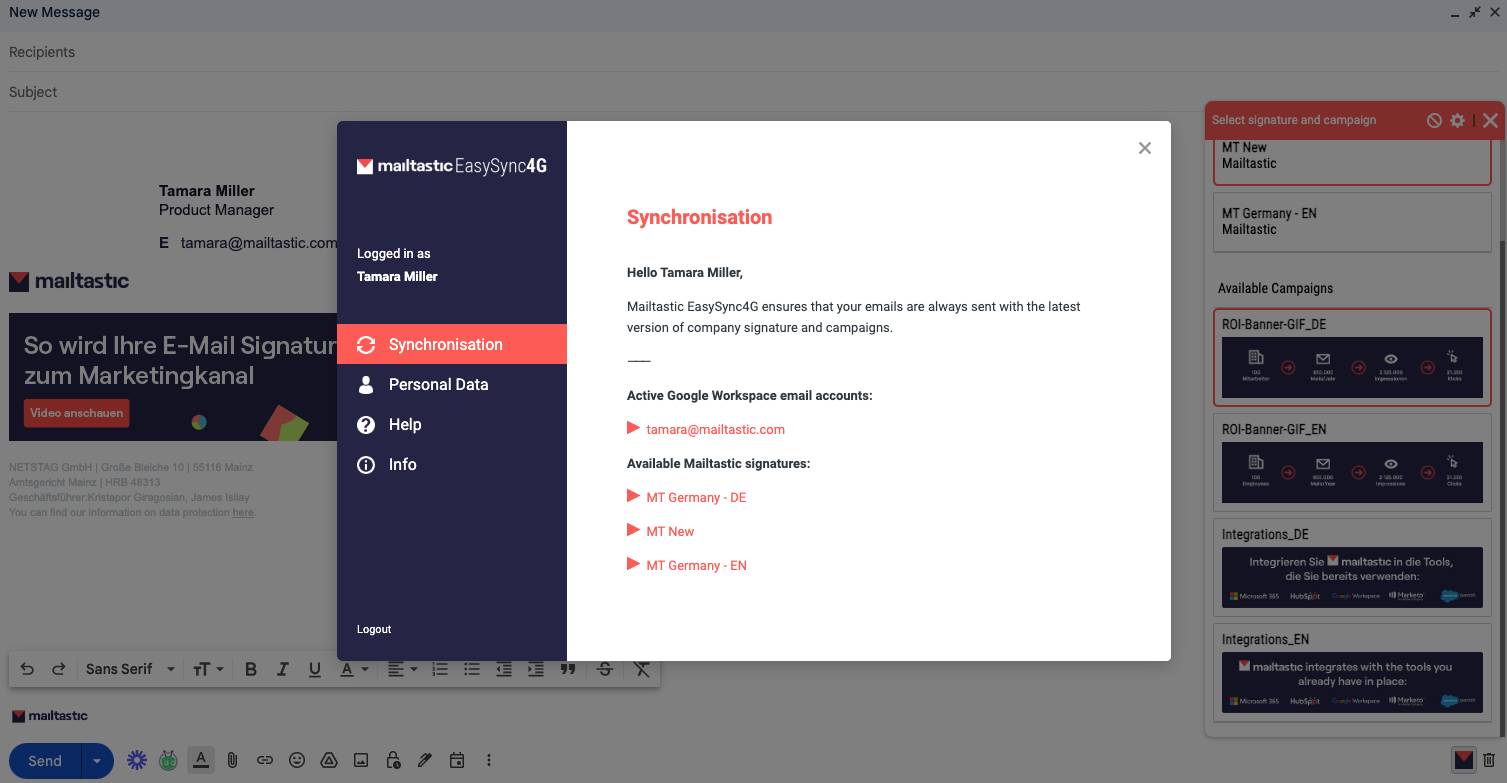
For more information about the signatures provided to you or to edit personal data - if provided by your Signitic Coral admin - access the "Signitic Coral EasySync4G" user interface by clicking again on the blue Signitic Coral icon in the upper right corner of your chrome browser:
Do you have any questions?
No problem - we will be happy to help you personally! Simply use our free live chat (bottom right).