Do you organize your employees via Google Workspace (formerly G Suite)?
Perfect! Synchronize your Google Workspace account with Signitic Coral (ex. Mailtastic) to import your Google Workspace users to Signitic Coral and centrally control, design and update your employees' Gmail email signatures from Signitic Coral.
The integration can be set up in just a few steps.
Important: The sync is one-sided, i.e. employee data is only transferred from Google Workspace to Signitic Coral, not the other way round. This means that your Google Workspace employee data will not be affected by Signitic Coral under any circumstances. This is how it works:
Step 1 - Open integration
In Signitic Coral, navigate to the menu item "Integration" (right navigation bar) and click on "Integrate" under "Google Workspace - User Sync & Gmail".
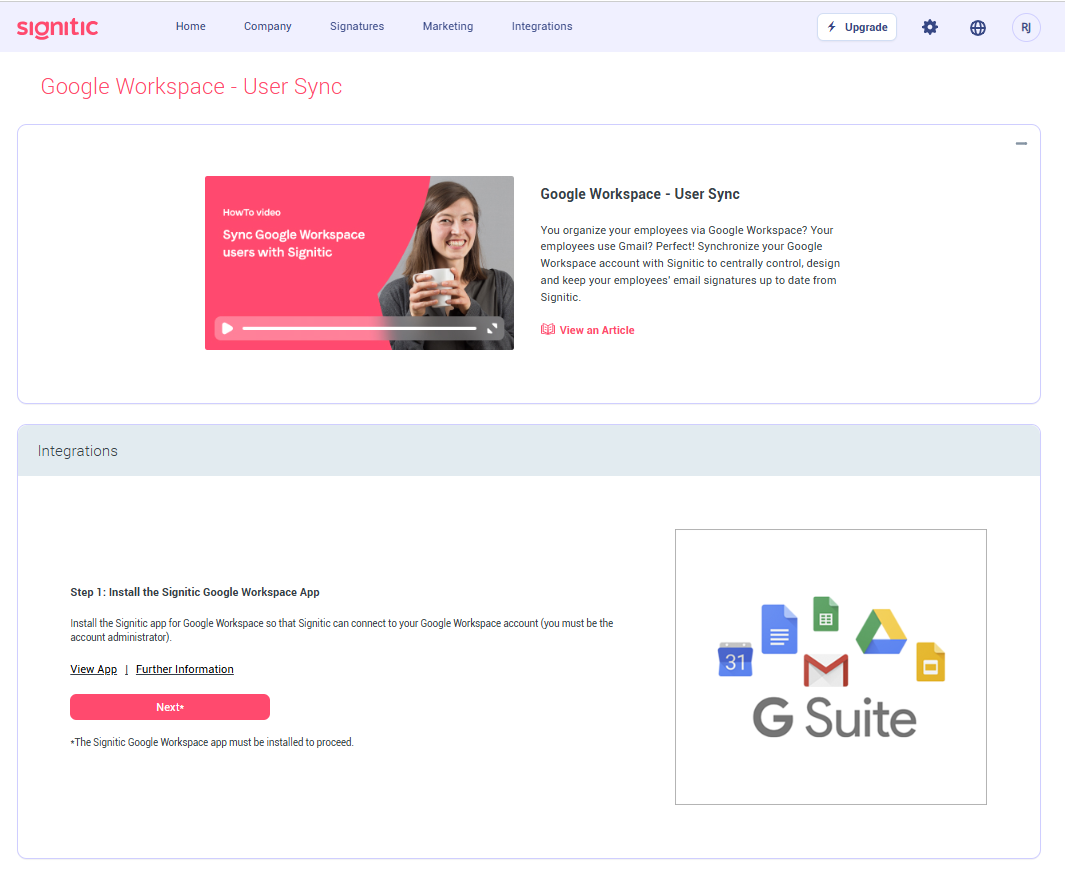
Step 2 - Install Signitic Coral-Google Workspace App
Install the Signitic Coral-Google Workspace app for your domain on Google Workspace and click Next. You must be admin of the account. You can ignore the request to perform further steps to complete the installation because you already have a customer account.
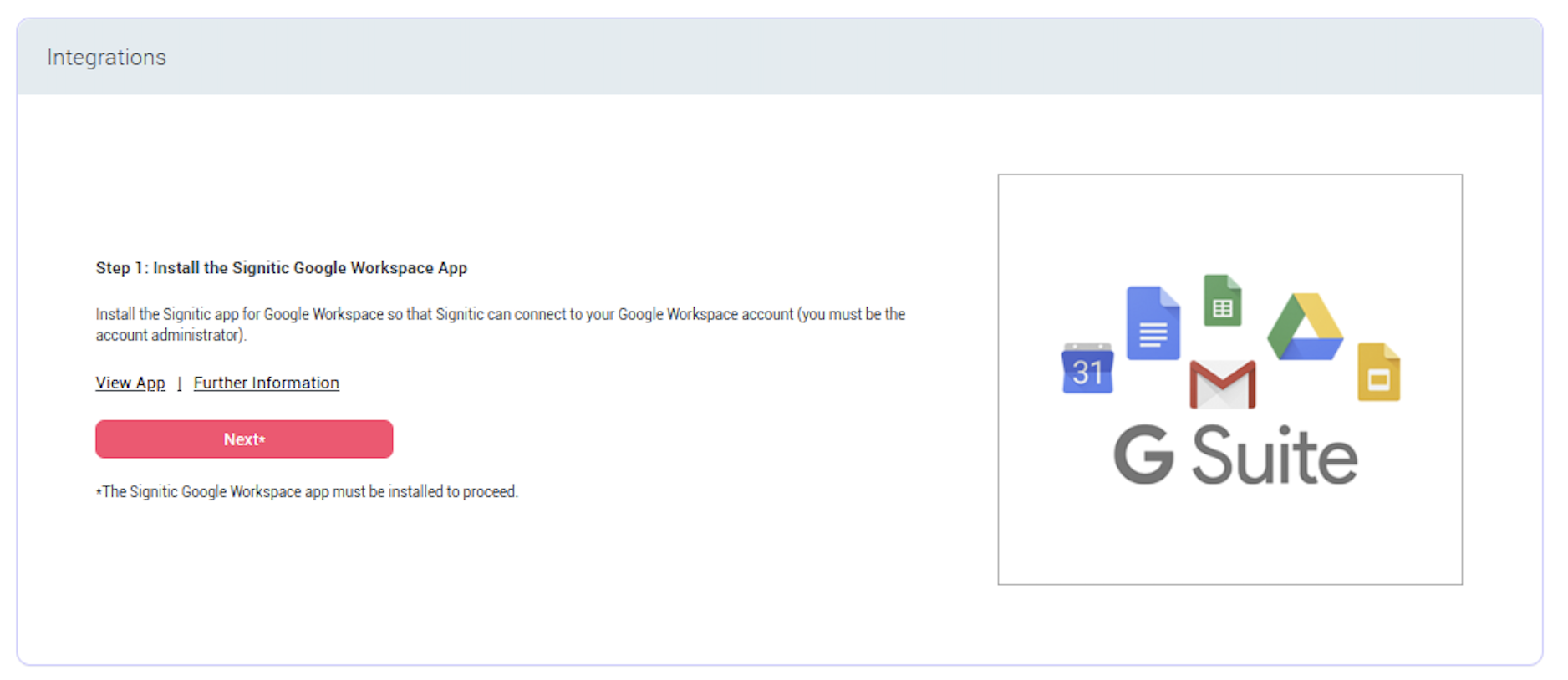
Step 3 - Establish connection
Connect to the Google Workspace account whose employees you want to import into Signitic Coralto manage their email signatures. You must be the admin of the account.
Click on "Allow" to grant Signitic Coral the required rights and make the synchronization settings. Signitic Coral is granted the right to access the user data required for the signature and the right to update the signatures of the relevant employees.
Step 4 - Import employees
Specify how you want to structure the Google Workspace users you import into Signitic Coral.
Do you want to move employees who are newly imported to Signitic Coral to the Signitic Coral standard department regardless of their Google Workspace department, or...
Do you want to move employees newly imported to Signitic Coral to departments corresponding to the Google Workspace users' departments. If a department of the same name exists, the employee will be moved to this department. If no department with the same name exists, a corresponding department is created.
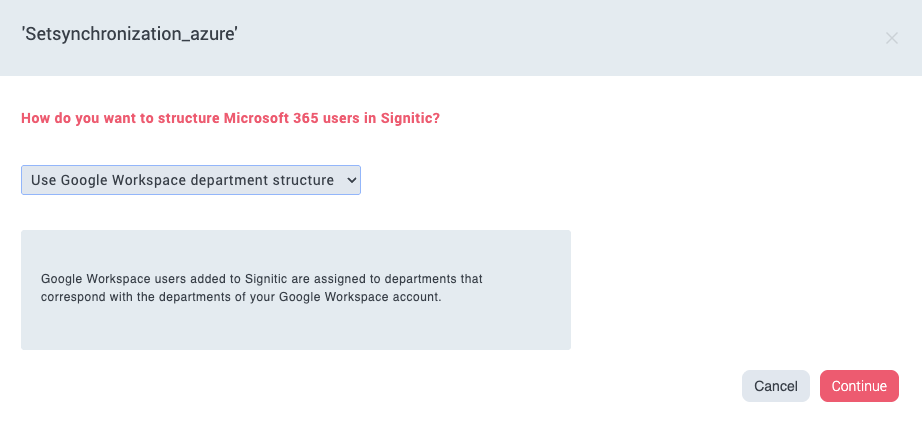
Select which members of your Google Workspace account you want to import into Signitic Coral. After importing, you can assign signatures and campaigns to the corresponding employees. Employees' Gmail signatures are automatically updated. Users that you do not select here can be imported into Signitic Coral later at any time.

After this setup the Sync to Google Workspace is active and the imported users can be managed under "Employees".
Even after the first import, you can adjust the settings for the employee organization in Signitic Coralat any time.
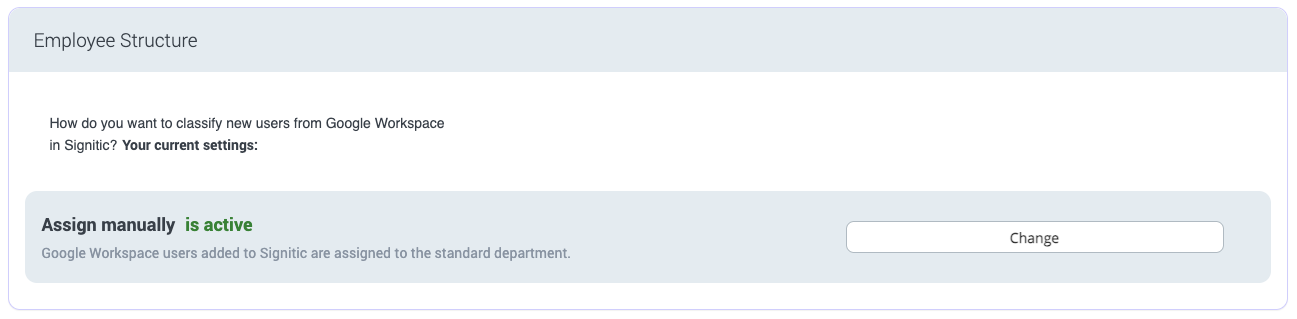
Settings for importing new employees:
Employees who are newly imported to Signitic Coral should be moved to the Signitic Coralstandard department regardless of their Google Workspace department, or...
Employees newly imported to Signitic Coral should be moved to departments corresponding to the Google Workspace users' departments. If a department of the same name exists, the employee will be moved to this department. If no department with the same name exists, a corresponding department is created.
Here you can make various settings for the synchronization of employee data from Google Workspace to Signitic Coral.
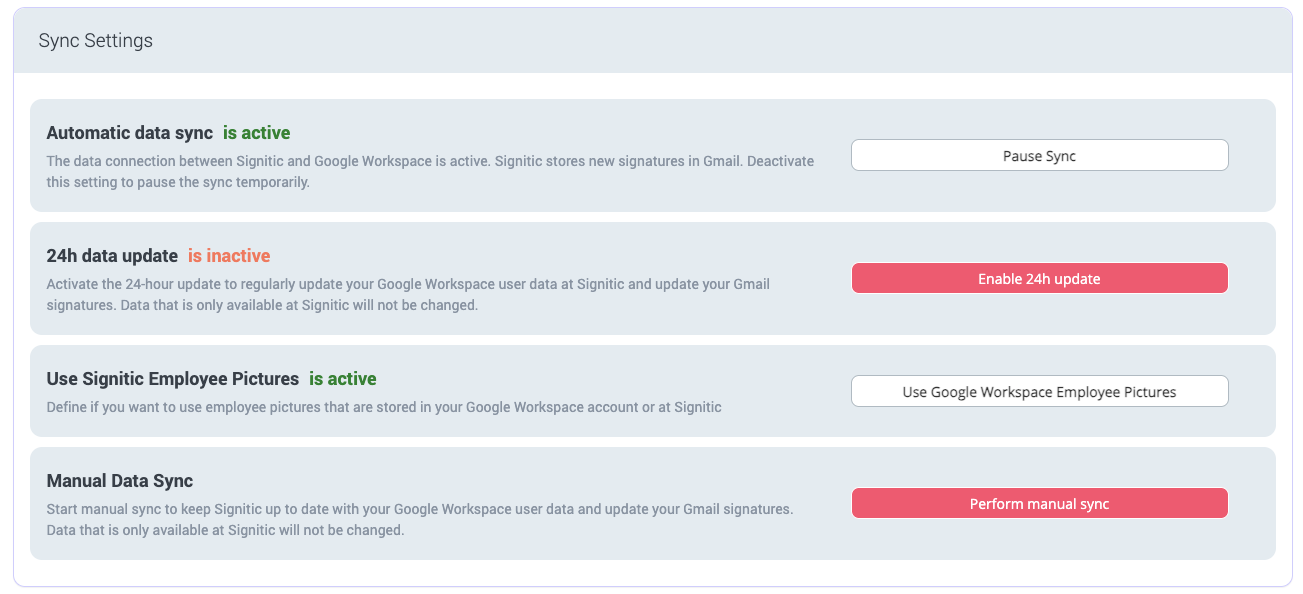
Automatic data sync
The data connection between Signitic Coral and Google Workspace is active. Signitic Coral stores new signatures in Gmail. Deactivate this setting to pause the sync temporarily.
24h data update
Activate the 24h update to regularly (every 24 hours at 03:00 a.m.) update your Google Workspace user data with Signitic Coral and update the Gmail signatures. Data that is only available at Signitic Coral will not be changed.
Manual data sync
Start the manual sync to store the latest version of your Google Workspace user data with Signitic Coral and to update the Gmail signatures. Data that is only available at Signitic Coral will not be changed.
In the user administration you can see all Google Workspace users and their current status at Signitic Coral.
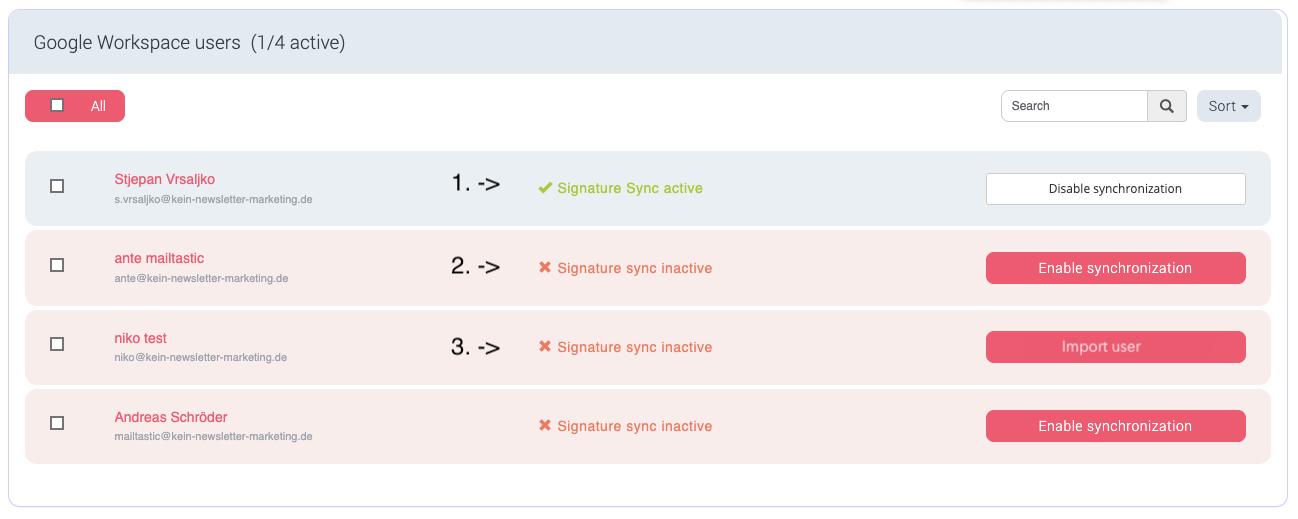
Status 1 - The Google Workspace user is created as a Signitic Coral user and the data sync is active: employee data for this user is transferred from Google Workspace to Signitic Coral and the Gmail signatures are synchronized.
Status 2 - The Google Workspace user is created as a Signitic Coral user, but the data sync is inactive: Employee data from Google Workspace is not updated and the Gmail signatures are not played.
Status 3 - The Google Workspace user is not a Signitic Coral user and can be imported.
Users who are deleted from Signitic Coral but are still in the Google Workspace account (status 3) can be reimported to Signitic Coral at any time.
Assign the desired signatures and/or campaigns to the departments of your Signitic Coral employees.
To make the email signatures available to your employees in Gmail, please install our Chrome Extension EasySync4G on the workstations of your colleagues. The installation is very easy and can be done centrally.
If the signatures are not displayed, please check your sync and employee settings within the Google Workspace integration or perform a manual data sync if necessary (in this case the employee data will also be synchronized).
Q: How do the signatures get into the e-mails of my employees?
A: After synchronization, your Google Workspace employees are available at Signitic Coral and you can decide which e-mail signature is displayed for which employee or department. Synchronization automatically attaches email signatures to the emails of employees who use Gmail. If your employees use other mail programs, please use a suitable integration.
Q: What is synchronized?
A: Employee data that you manage through your Google Workspace account is added to Signitic Coral along with the required data (e.g. first name, last name, e-mail address, address, phone numbers, position) and the Signitic Coral sigantures are stored in the Gmail of these employees.
Q: When is synchronized?
A: At manual sync or every 24 hours at 03:00 o'clock at night.
Q: Some employees managed in Google Workspace have already been manually created in Signitic Coral before the Google Workspace integration went live. What happens when I start G Suite integration?
A: If the created Signitic Coral employees have the same email address as the corresponding Google Workspace users, the employees will not be imported twice.
The data stored in Signitic Coral for the user will not be overwritten initially. To enable Gmail synchronization for these users, you need to enable sync in the Google Workspace user management. Where employee data is available in the Google Workspace, it will be transferred. Where no Google Workspace data is available, the Signitic Coral employee data will be retained.
Q: What settings can I make during synchronization?
A: You can specify which employees you want to add to Signitic Coral to manage their signatures.
You can decide how you want to organize the employees in Signitic Coral. You can adopt the department structure of Google Workspace: This means that the employees are assigned to departments that correspond to your departments, or you can organize the employees independently of the Google Workspace structure: This means that the employees are automatically moved to the Signitic Coral "Standard department".
Q: What effect does synchronization have on my Google Workspace account?
A: Except for the Gmail signature that you assign to your employee, no data is changed within your Google Workspace account.
Q: Can the synchronization be stopped at any time?
A: Yes. Synchronization can be paused or permanently canceled for individual or all users at any time.
Q: Do I have to be an Admin for the Google Workspace account?
A: Yes.
Q: What are the costs for this service?
A: There are no separate costs for the service. Your rate depends on the number of employees you add to Signitic Coral as a user.
Q: Do I see the automatic signature when I write and can I adjust it?
A: Yes, you can see and modify your signature at any time when writing each e-mail.
Do you have any questions?
No problem - we will be happy to help you personally! Simply use our free live chat (bottom right).